



Changing the dialog language
You can change the dialog language of eformity at any time. This article will guide you through the process using the sidebar in Microsoft Word. Alternatively, you can also change the dialog language via the Template Manager. Here are the four simple steps to change the dialog language:
- Open the Sidebar in Microsoft Word
- Go to 'Your Account'
- Open 'Settings'
- Choose another dialog language in 'Language Settings'
Step 1: Open the sidebar in Microsoft Word
To change the dialog language, you need to open the sidebar in Microsoft Word. The sidebar opens automatically when you launch Word. If it doesn't, you can manually open it by clicking on 'Show/Hide Sidebar' in the ribbon.

Step 2: Go to 'Your Account'
Once the sidebar is open, navigate to the 'Your Account' section. You can access this section by clicking on the profile picture in the sidebar. In the image below, the 'profile picture' is circled.

Step 3: Open 'Settings'
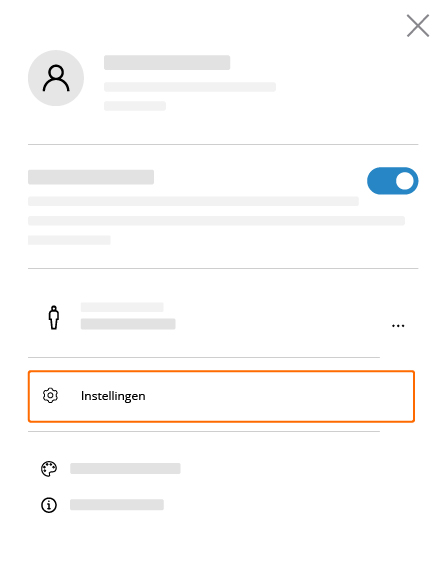
After accessing the 'Your Account' section in the sidebar, locate and click on 'Settings'. In the image below, 'Settings' is circled.
Step 4: Choose another dialog language in 'Language settings'
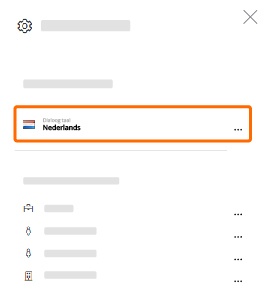
The settings will now be displayed. To change the dialog language, click on 'Language settings'. This section is circled in the image below.
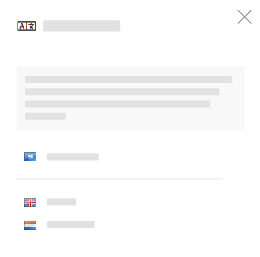
Once you've accessed the language settings, you can select the desired dialog language from the options available. The language you select will remain active until you change it using the same method.

The desired language is not listed?
If the desired language is not listed, it may not have been created or activated yet. Activation and creation of languages must be performed by system or subscription administrators.