



Working with variables in Microsoft PowerPoint
This article explains how variables work in Microsoft PowerPoint when using eformity. You’ll learn what they are, how to create them, and how to insert them into your presentation using shapes, text boxes, or other objects.
What are variables?
Variables are dynamic placeholders that automatically insert data into your presentation. They ensure consistent and accurate information across templates, based on predefined values or user input. Variables are essential for creating flexible, reusable presentation templates.
Types of variables
The same variable types available in Microsoft Word are also supported in PowerPoint. Each serves a specific purpose within eformity:
- Text (and List)
- Date
- Yes/No
- Number (without comma)
- Number (with comma)
- Currency
- Image

For detailed explanations of each variable type and their format options, see the article Working with variables in Microsoft Word.
Creating variables in Microsoft PowerPoint
All variable types are created in the same way, directly from the eformity side panel. Follow these steps to create variables in PowerPoint.
Step 1: Open the eformity side panel in PowerPoint
When PowerPoint starts, the eformity side panel will open automatically. If it doesn’t, click the Task Pane button to open it manually.

Step 2: Enable edit mode
Before working with variables, make sure Edit mode is enabled in your profile. Click your profile picture and enable Edit mode to start editing templates.

Step 3: Edit the desired template
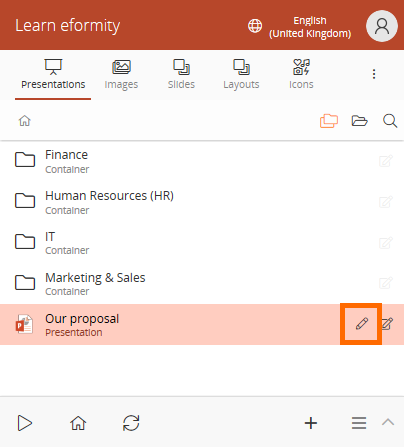
Select the template you want to edit. Click the pen icon next to the template name, or choose Edit from the options menu.
Step 4: Add a new variable
Once the template is open for editing, click the + icon in the eformity side panel to add a new variable.

Step 5: Select a data type
After clicking the plus icon, select the appropriate data type (e.g., Text, Number, Date, etc.).

It is a good practice to use folders to organize your variables per slide for better structure.
Step 6: Fill out the General tab (required)
Each variable includes a General tab where you define its basic information:
| Field name | Description |
|---|---|
| Name (required) | Internal reference name (no spaces or special characters). |
| Description | Optional additional info for users. |
| Place on Dialog | Defines whether the variable should appear in the input dialog. |
Step 7: Fill out the Value tab
Use the Value tab to define how the variable behaves. You can set default values, use expressions, or link it to other variables or data sources.
| Field name | Description |
|---|---|
| Default value type | Choose from Default value, Expression, Variable, or Datasource. |
| Default value | Value used when no user input is provided. |
| Default format | Defines the display format (especially for dates, numbers, or currencies). |
| Document Property | Link the variable to a document property (e.g., @author). |
| Bookmark | Connects the variable to a specific PowerPoint object (see below). |
Linking variables to PowerPoint elements
Unlike Microsoft Word, where variables can be inserted directly as text, PowerPoint requires you to use objects, such as text boxes and shapes, to define variable positions.
Step 1: Insert a PowerPoint object
From the Insert tab, add a text box, shape, or other placeholder where you want the variable to appear.

Step 2: Open the Selection Pane
Go to Home → Arrange → Selection Pane to display all objects currently on your slide.

Step 3: Link the shape with the variable
Once the selection pane is open, note the name of the shape you want to link.
You can rename PowerPoint’s default shape names to something more recognizable.
Next, enter the shape name in the Bookmark field of your variable (located under the Value tab). Make sure to use the following format:
shape.{name}For example, if your shape is called Title 1, use shape.Title 1.

You must include the prefix shape. for the link to work. If you’re only using the standard Title and Subtitle text boxes, use title and subtitle instead.

Step 4: Test your variable
After linking, generate or preview your presentation to verify that the variable data appears correctly in the designated shapes.
Summary
You’ve now learned how to create and link variables in PowerPoint using eformity. Variables make it possible to build dynamic, reusable templates that automatically adapt based on user input or data sources.