



Creating and uploading a PowerPoint presentation
With eformity, you can easily create and manage PowerPoint presentations directly from Microsoft PowerPoint. This allows you to build new presentations or upload existing ones while keeping your content centralized and accessible to everyone in your organization.
Why create presentations through eformity?
By creating presentations via eformity, you ensure that all users work with the same templates, layouts, and branding standards. It also makes it easier to share, update, and reuse existing presentations without manually maintaining multiple local copies.
Creating a new presentation
Step 1: Open Microsoft PowerPoint
Start by opening Microsoft PowerPoint. Make sure the eformity side panel is visible. If it doesn’t appear automatically, click the Task Pane button in the ribbon to open it manually.

Step 2: Enable Edit mode
Only users with administrator permissions can create or upload presentations. To enable Edit mode, click your profile picture in the eformity side panel. In the menu, toggle the Edit mode switch on.

Step 3: Open the Presentations section
In the eformity side panel, navigate to the Presentations section (this section opens by default). Here, you can view all existing presentations and create or upload new ones.
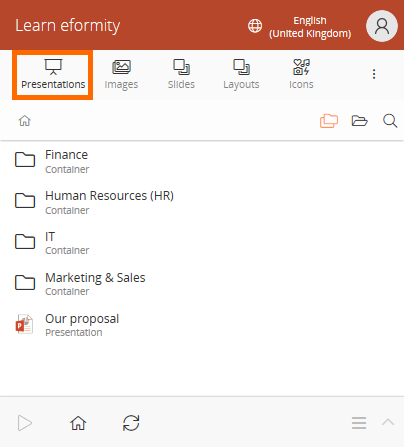
Step 4: Create a new presentation
Now that you’re in the Presentations section, click the + icon at the bottom of the panel and select Presentation.
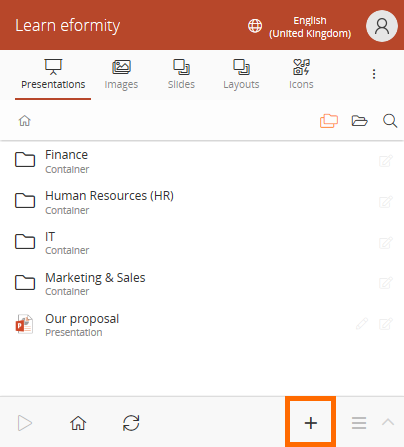
After clicking this option, a dialog will appear asking you to enter some basic details:

| Field name | Description |
|---|---|
| Name (required) | Give the presentation a clear, unique name. |
| Display name | Provide a more descriptive title for end users. |
| Description | Optionally describe the presentation’s purpose or content. |
After filling in the fields, click Create. A new, blank PowerPoint presentation will be generated and added to your eformity library.
Uploading an existing presentation
If you already have a PowerPoint file saved on your computer, you can upload it directly into eformity via the Presentations section of the side panel.
Step 1: Select the Upload file option
To upload a presentation, follow steps 1–4 from the Creating a new presentation section. However, instead of choosing Presentation, select Upload file.

Step 2: Add details
After clicking Upload file, you’ll be prompted to provide a Name, Display name, and Description for your presentation, just like when creating a new one.
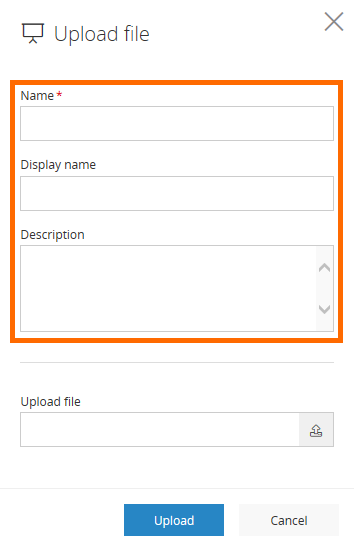
Step 3: Select the file
Browse your computer and select the PowerPoint (.pptx) file you want to upload. Once selected, confirm the upload.

After the upload completes, the presentation will appear in your eformity library and can be opened or edited directly within Microsoft PowerPoint.