



What are asset libraries and how can you create them?
eformity allows you to upload and manage various types of assets, including images, icons, shapes, and graphs. But how do you manage all these assets in a clear and efficient way? That’s where asset libraries come in. In this article, we’ll explain what an asset library is and how you can create one.
What is an asset library?
When working with different types of assets in our system, things can get a bit chaotic. That’s why we introduced asset libraries. An asset library is essentially a folder that contains a collection of assets—such as images, icons, shapes, or graphs—grouped together for better organization.
How to create an asset library?
By default, we’ve defined several types of libraries to help keep your assets structured and separated by type. However, when existing libraries grow or are used extensively, it can be useful to create additional libraries. You can create these either from the side panel or from the web environment. In this example, we’ll use the web environment.
Step 1: Log in to the web environment
To get started, log in to the web environment by visiting: yourcompanyname.eformity.net. Replace yourcompanyname with the name of your subscription. Enter your login credentials to access the platform.
Step 2: Navigate to the 'Libaries'
Once logged in, open the navigation pane by clicking the hamburger menu icon in the top-left corner.

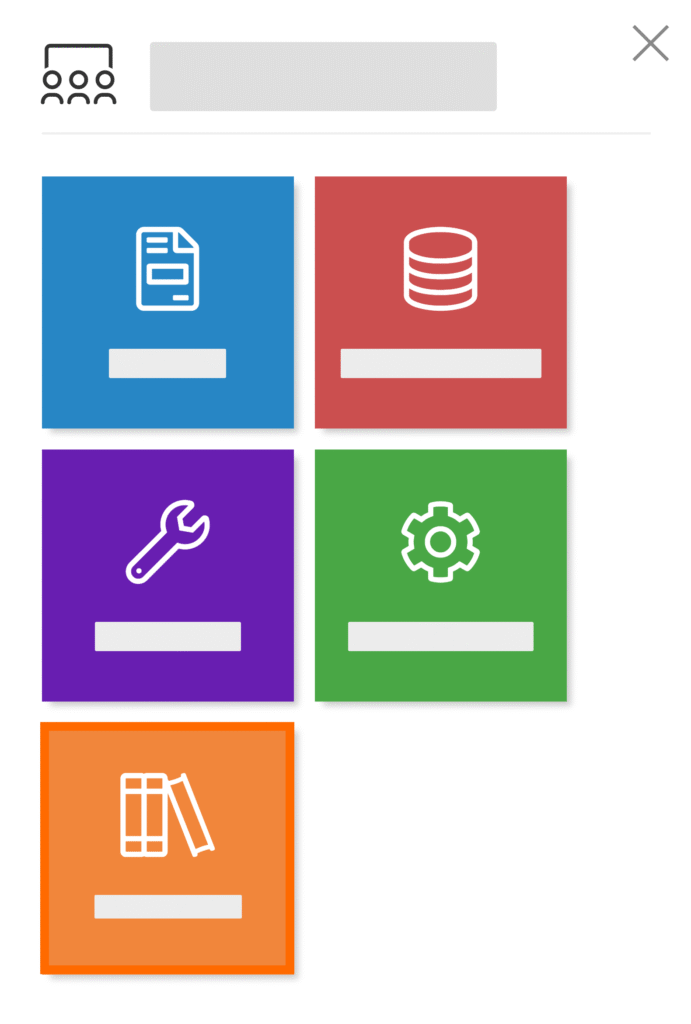
This will reveal the side menu. In the menu, click on ‘Libraries’ to go to the asset libraries section. See the image below where the option is highlighted.
Step 3: Select an asset type library
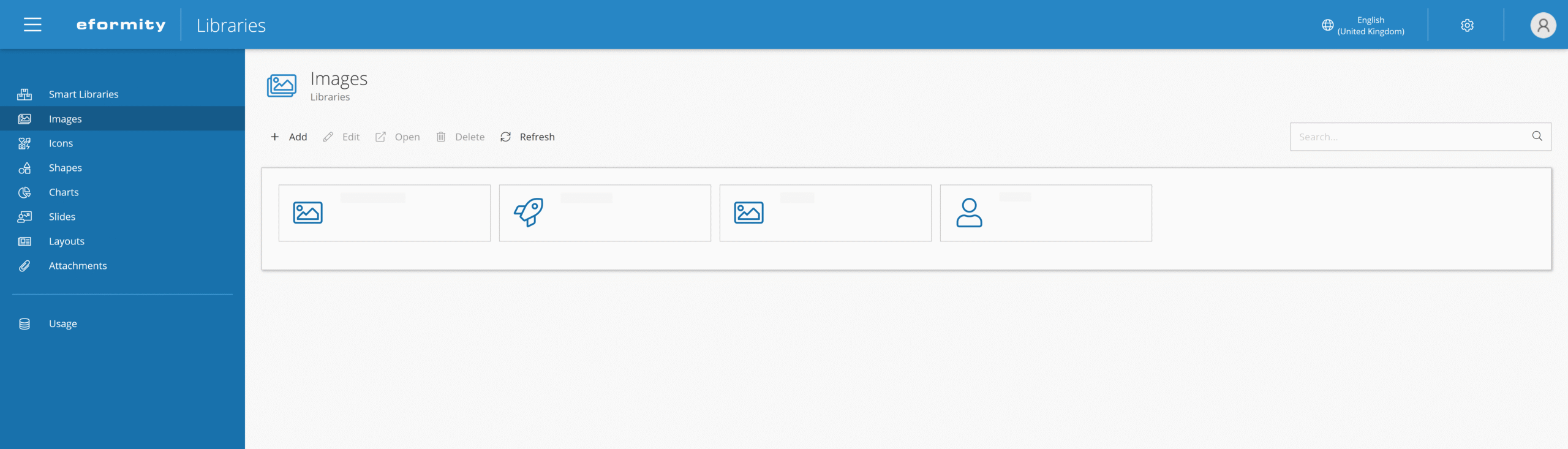
On the Libraries page, you’ll see different asset type categories. In this example, we’ll choose the ‘Images’ library, but the process is the same for all asset types (icons, shapes, and graphs).
Step 4: Add a new asset library
Once you’ve selected the asset type, you can add a new library. Click the ‘Add’ button to create a new library.

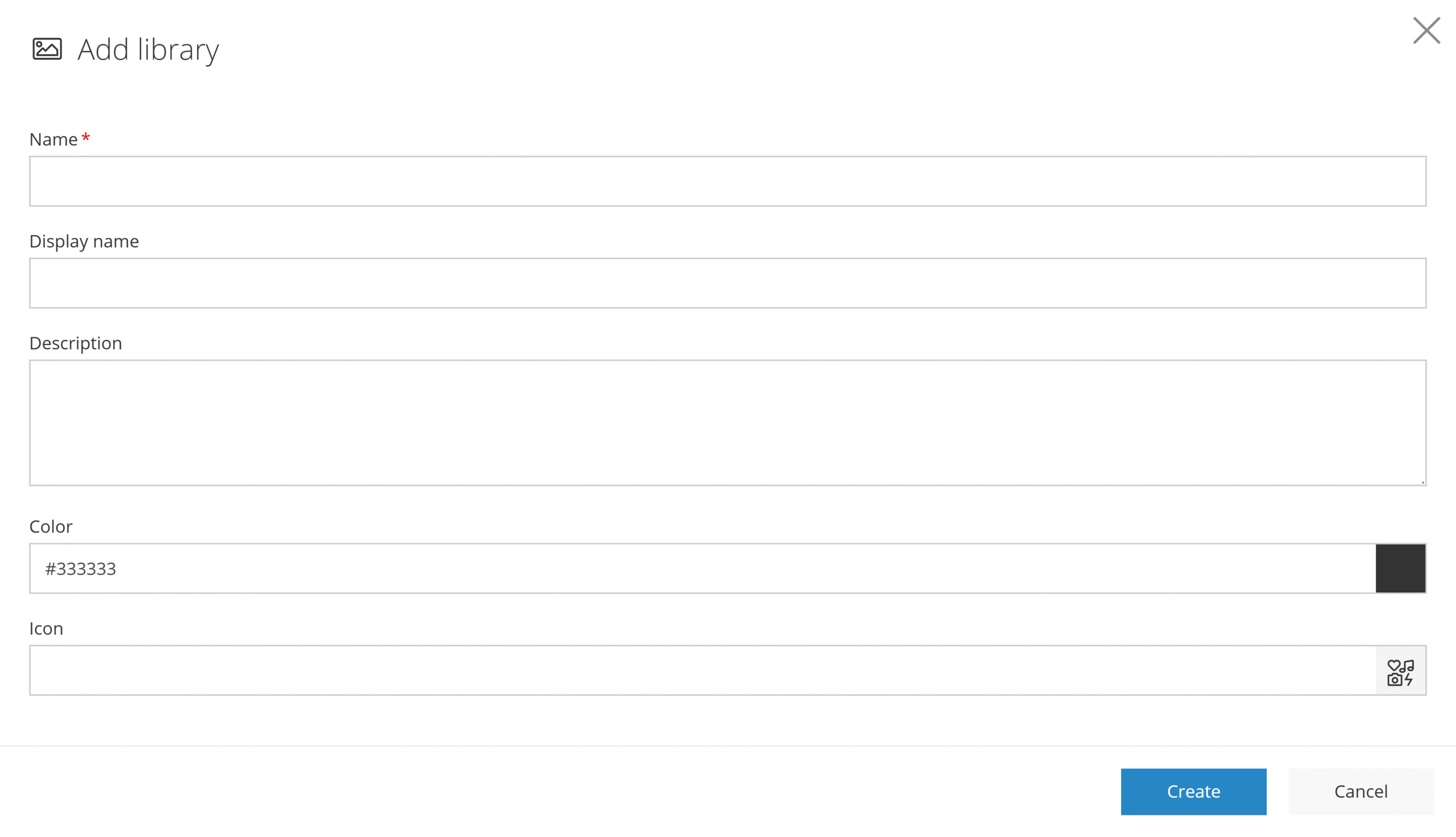
A side panel will appear on the right side of the screen, allowing you to fill in the details for your new library. Below the image, you’ll find a table that explains each field:
| Field name | Description |
|---|---|
| Name (required) | The unique name of the library. This field is required. |
| Display name | An optional, user-friendly name that will be shown to end users. |
| Description | A brief description of the library’s purpose or contents. |
| Color | The color that will be applied to the icon you choose. |
| Icon | Select an icon to visually represent this library. |
Once you’ve filled in the necessary fields, click ‘Create’ to save the library. Your new library is now ready to use—you can start adding assets to it and keep your asset management well-organized, making it easier for users to find what they need when working on documents.