



How to add, edit, and delete Images
eformity allows you to add, edit, and delete various types of assets. The first asset type we'll cover is images, as they are likely the most frequently used assets when working with the eformity. In this article, we’ll explain how to add, edit, and delete images in eformity.
What are Images?
This might sound self-explanatory, but since eformity supports more than just images, it’s helpful to define what qualifies as an image within the system. In eformity, an asset is considered an image if the file has one of the following extensions: .png, .jpg, or .jpeg.
Adding an Image
Before adding images, we recommend creating at least one image asset library. Once you have created a library, you’re ready to start adding images. You can upload images either via the web environment or the side panel. However, for image assets, the web environment is typically more convenient.
Step 1: Log in to the web environment
To start adding images to eformity, log in to the web environment at: yourcompanyname.eformity.net. Replace yourcompanyname with the name of your subscription and enter your login credentials.
Step 2: Navigate to 'Libaries'
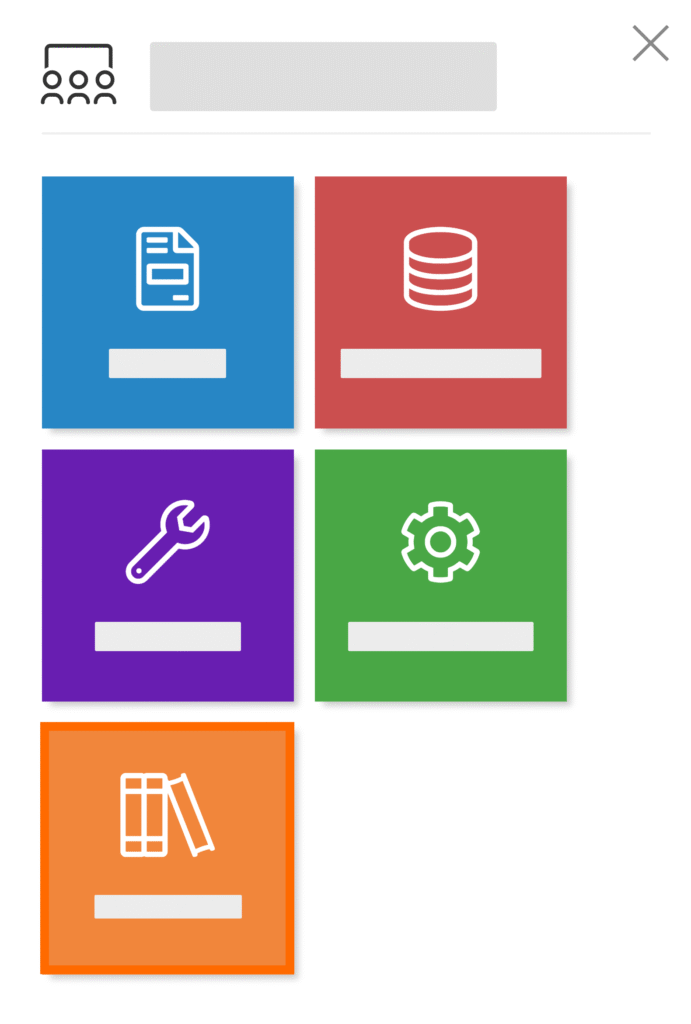
Once you’re logged in, click the hamburger menu icon in the top left corner to open the navigation panel.

When the panel appears on the left side of the screen, click on the ‘Libraries’ option. This option is highlighted in the image below.
Step 3: Open an Image library
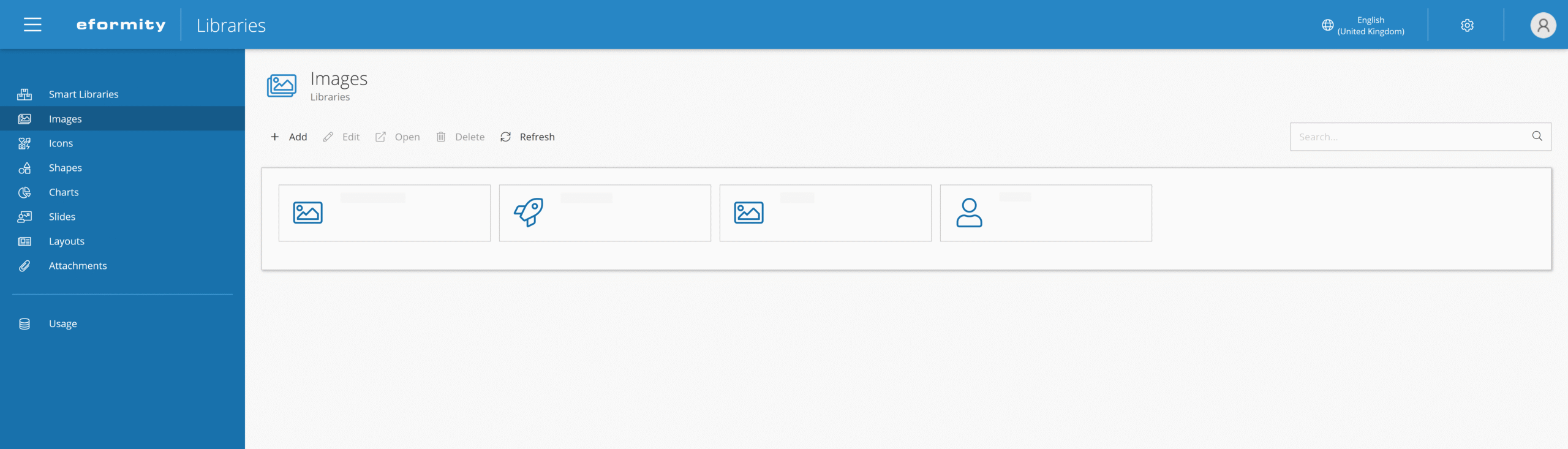
On the Libraries page, select ‘Images’ from the left-hand menu to access your image libraries.
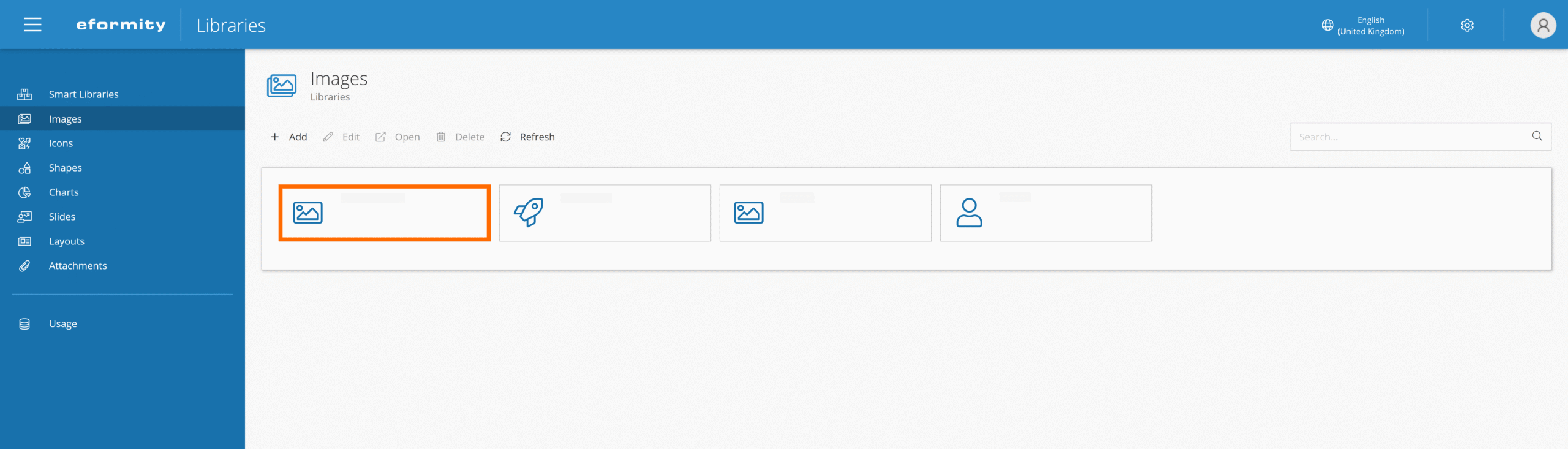
Once you've clicked on ‘Images’, a new page will open. Here, you can choose which library you want to use to start adding your images.
Step 4: Add a new Image
After opening your desired image library, click the ‘Add’ button to upload a new image. This button is highlighted in the image below.
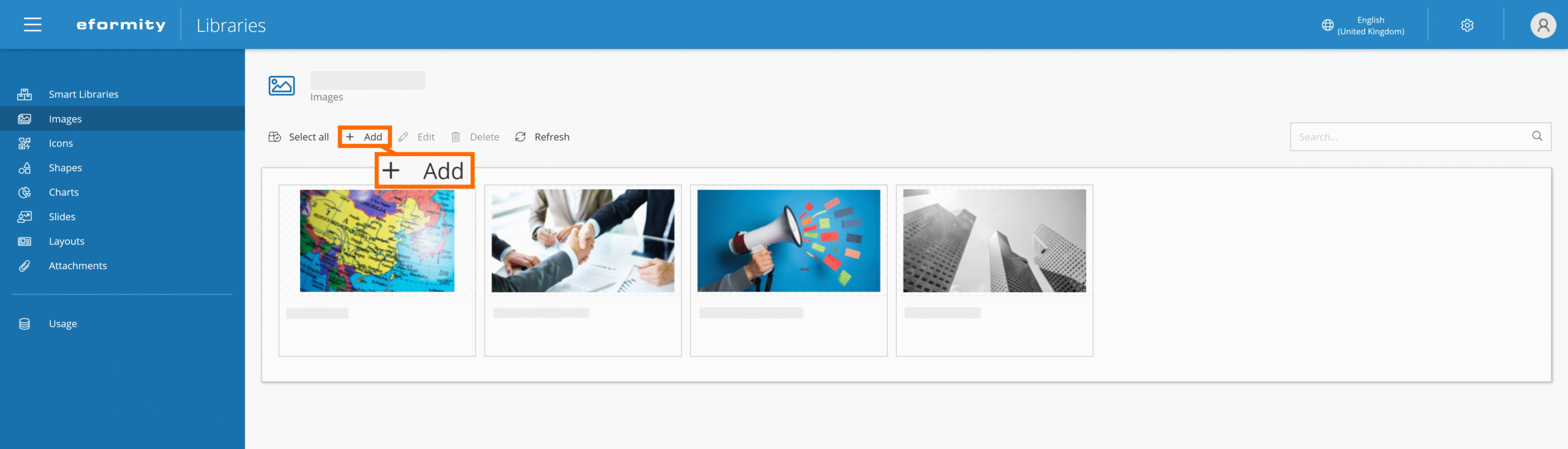
A side panel will appear on the right side of the screen. In this panel, you can upload your image and enter additional information. See the table below the image for an explanation of each field:

| Field name | Description |
|---|---|
| Name (required) | Give the image a name. |
| Display name | Give the image more descriptive name for end users |
| Description | Set an additional description for how to use an image |
| Image | Upload the desired image. |

When selecting multiple images, you can drag and drop them directly into the library to bulk upload. The image name will be set automatically based on the file name.
Editing an Image
Once you’ve added images to a library, you can easily edit them. To do so, open the image library, click on the image you want to edit, and then click the ‘Edit’ button.
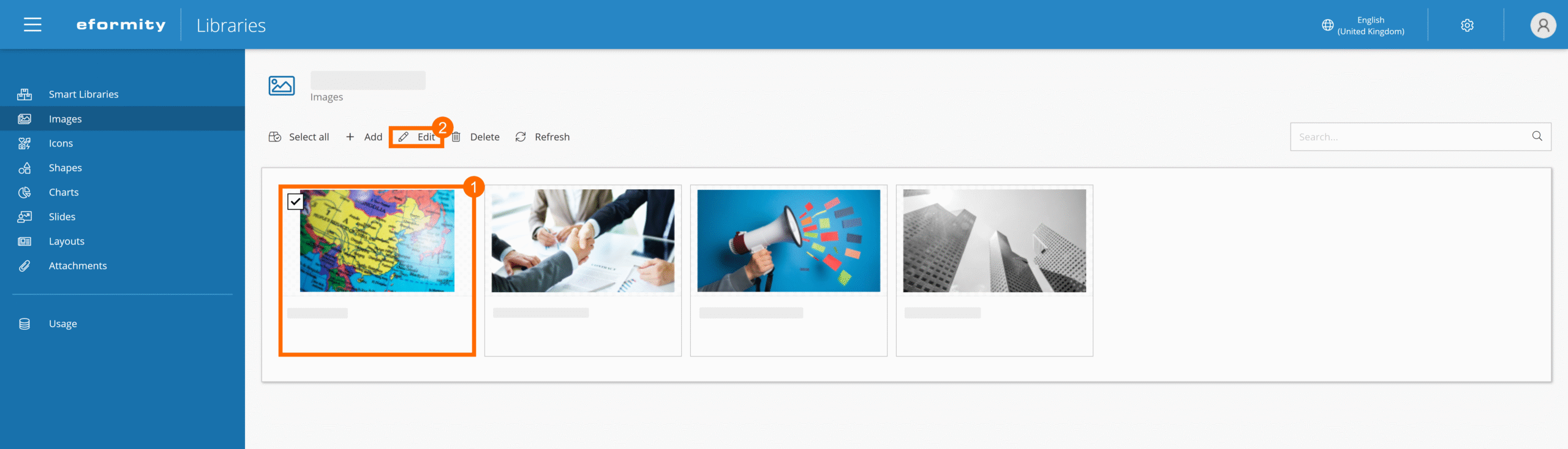
A side panel will open on the right-hand side, showing the same fields as when adding an image—only this time, the fields are pre-filled with the current values.

Deleting an Image
Besides editing, you can also delete images from a library. To delete an image, select it and then click the ‘Delete’ button. You’ll be asked to confirm the deletion before the image is permanently removed.


Please note: there is no trash or recycle bin. Once deleted, the image is removed immediately and cannot be recovered.