



How to add, edit and delete Icons
Next to images, eformity also allows you to upload and manage icons. In this article, we’ll cover how you can create, edit, and delete icons in eformity. First, we’ll discuss what an icon is within eformity.
What is an Icon?
Icons are different from images for several reasons. The most important distinction is that icons are usually vector-based files supported on the web. There is only one file type that falls into this category: SVG (Scalable Vector Graphic).
Why is it important to upload this instead of any other file type? Microsoft natively supports vector files, allowing you to scale them without losing quality. Additionally, you can recolor or delete specific parts of an icon within Office 365.
Adding an Icon
Icons can be added either through the web environment or directly via the side panel in Microsoft Word, for example. If you want to use your own icons, it’s recommended to use the web environment, as it allows you to upload multiple icons at once.
Step 1: Log in to the web environment
In order to access the web environment, you need to log in first. Go to yourcompany.eformity.net, where 'yourcompany' is the subscription name of your environment. Fill in your personal details to access the eformity web environment.
Step 2: Open the 'Libraries' section
Icons, just like any other asset, live in the Libraries section of eformity. To get there, you first need to open the menu. Click on the hamburger icon to open the menu.

After clicking the hamburger icon, a new side panel will open on the left side of the screen. This side panel contains different options. Choose Libraries to navigate to the icon libraries.
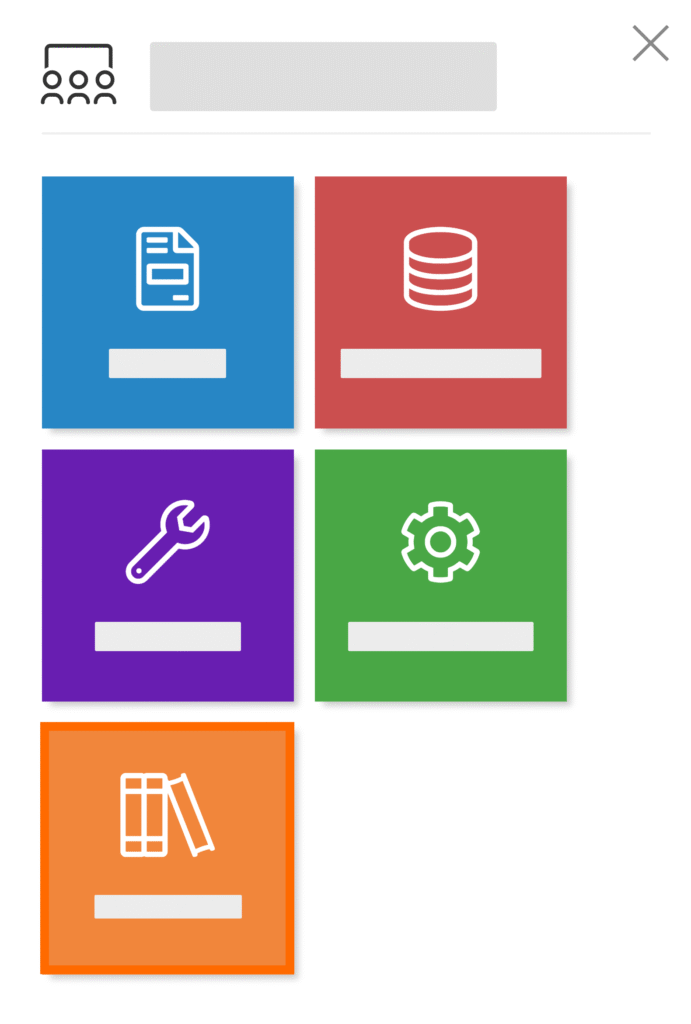
Step 3: Open an Icon library
Once the media libraries section has opened, you will see the different available libraries. You can now open the Icons section.

Now that you’ve opened the icons section, you need to select the specific library where you want to upload your icons.
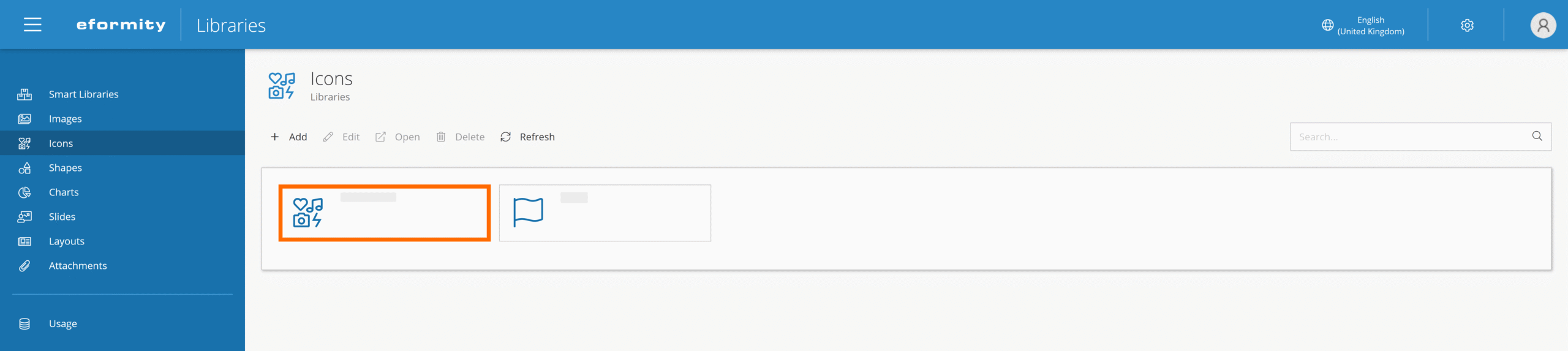
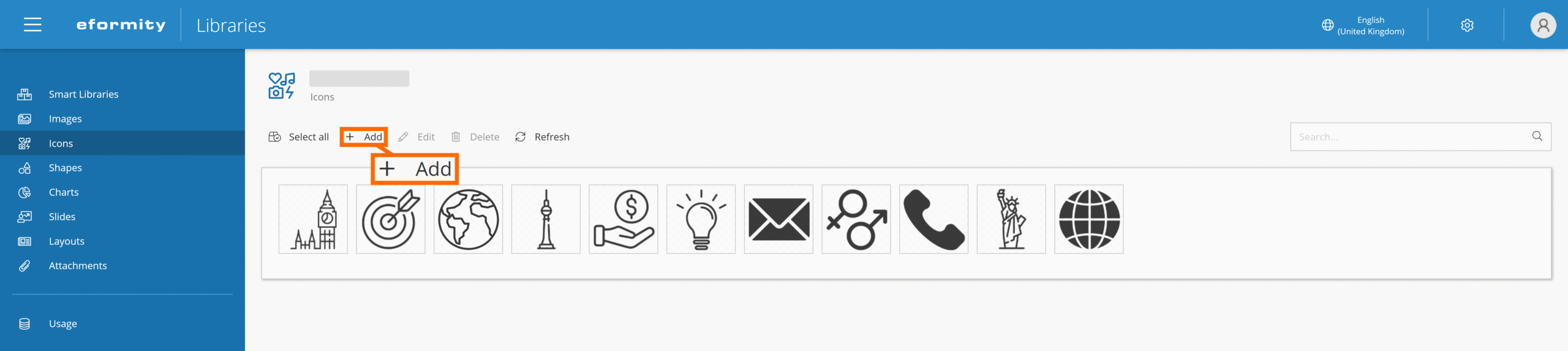
Step 4: Add a new Icon
Now that you’ve opened the desired icon library, the next step is to start uploading your icons. To upload a new icon, click the Add button.
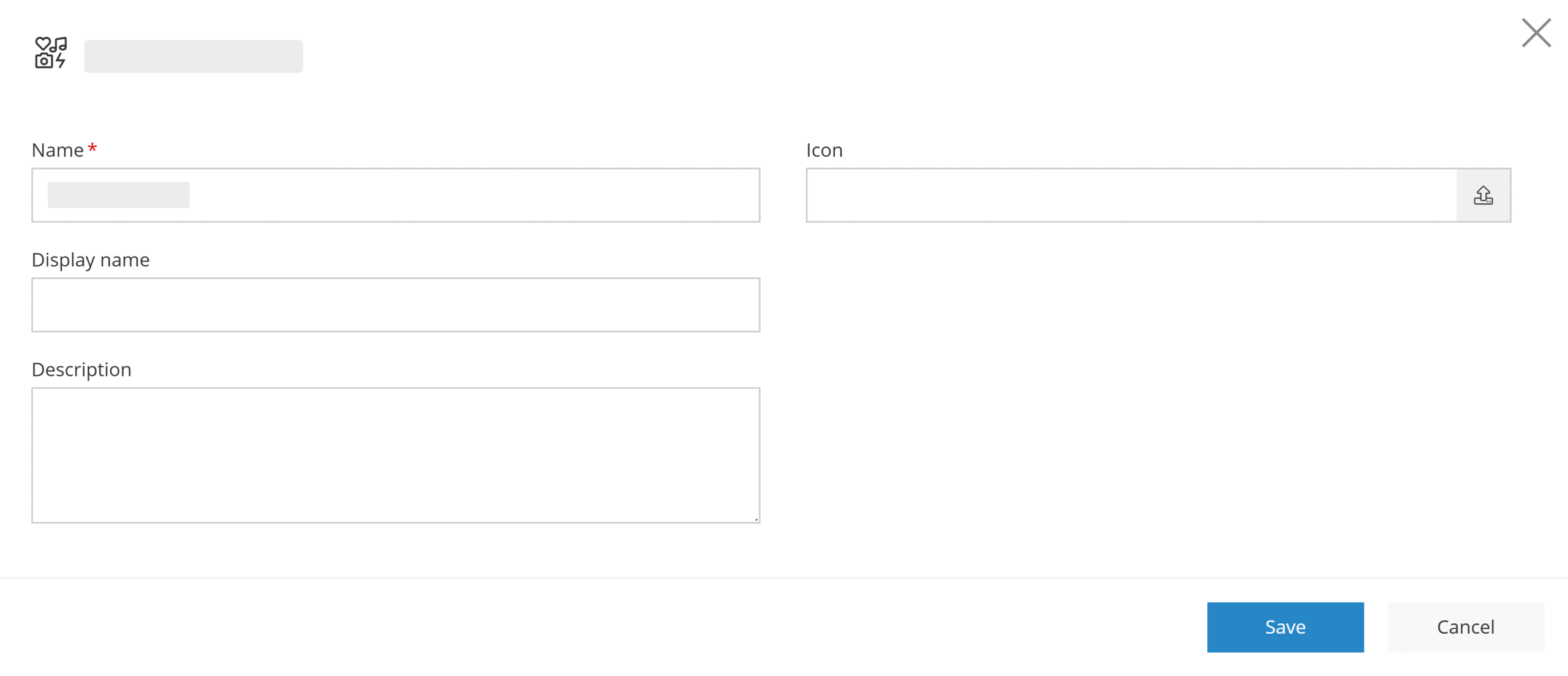
On the right side of the page, a side panel will open. In this side panel, you need to fill in the information about the icon and upload the icon file. In the image below, you can see how the side panel looks. Below the image, there is a table with descriptions for each of the fields.
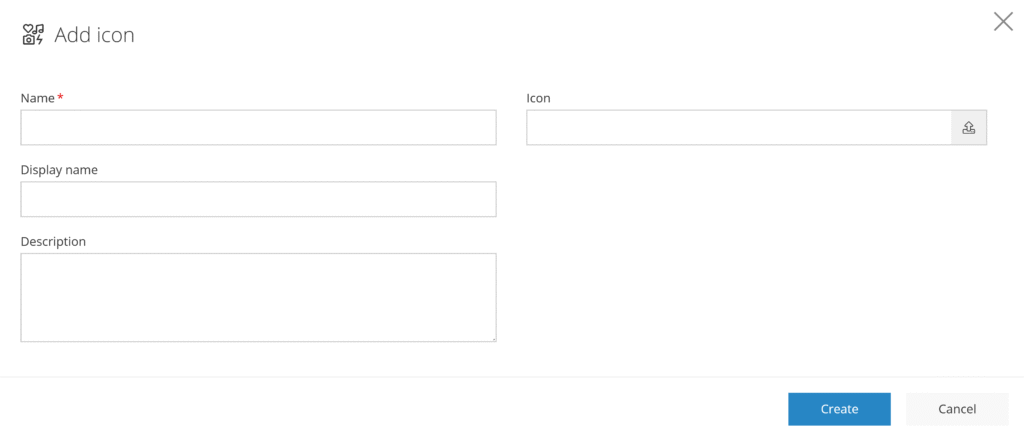
| Field name | Description |
|---|---|
| Name (required) | Give the icon a name. |
| Display name | Provide a more descriptive name for end users. |
| Description | Set an additional description for how and when to use the icon |
| Icon | Upload the desired icon (SVG file) |

When selecting multiple icons, you can drag and drop them directly into the library to bulk upload. The icon name will be set automatically based on the file name.
Editing an Icon
Now that your icon library is filled with your brand icons, you may want to change or update some of them. To edit an icon, you first need to select it. You do this by clicking on the icon. Next, you can click the Edit button.
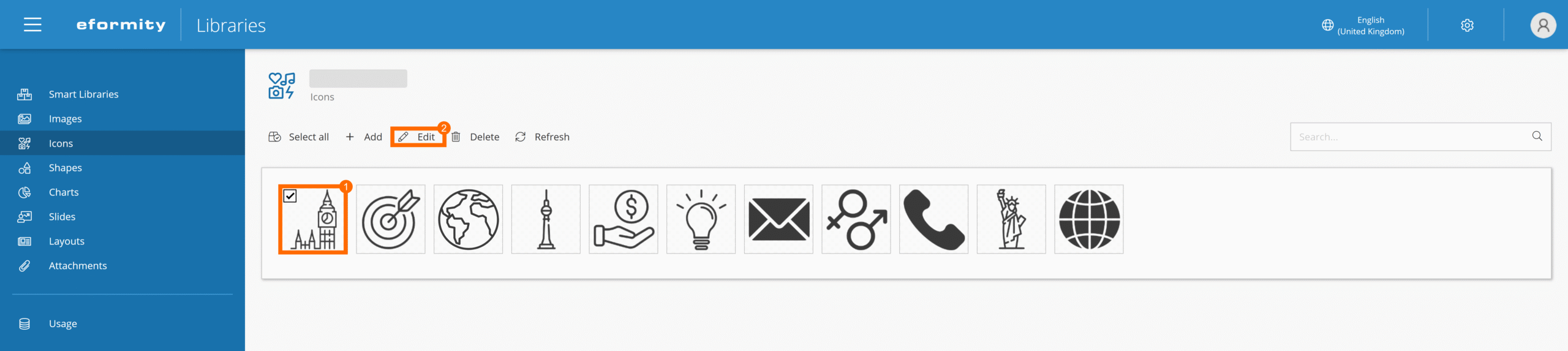
This will open a side panel on the right side of the screen. The side panel contains the different fields for the icon. These fields are the same as when adding an icon, but now the values are pre-filled. Change the desired values and click the Save button to save your changes.
Deleting an Icon
In addition to editing an icon, you can also choose to delete an icon. To delete an icon, you first need to select it. Click on the icon to select it. After selecting the icon, click the Delete button.


Please note: there is no trash or recycle bin. Once deleted, the icon is removed immediately and cannot be recovered.