



How to add, edit and delete Charts
With eformity you can save several types of assets, including images, icons, shapes, and charts. In this article, we’ll explain what charts are and how you can add, edit, and delete them in eformity.
What are Charts?
You probably already know what charts are in general, but you may not know what they are in documents or presentations. Microsoft allows you to create charts based on data provided by the user. With eformity you can save the charts that you create within the Microsoft environment.
Adding a Charts
Just like shapes, charts can only be added to eformity through the eformity side panel. Therefore, the first step is to open your preferred Microsoft application. In this example, we’ve chosen to use Word.
Step 1: Open the sidepanel in Microsoft Word
When you open Microsoft Word, the side panel usually opens automatically. If this is not the case, you can open it manually by clicking this button:

Step 2: Enable Edit mode
Now that you’ve opened the side panel, you need to enable Edit mode in order to add charts to the asset library. Click on your profile picture to open the account menu.
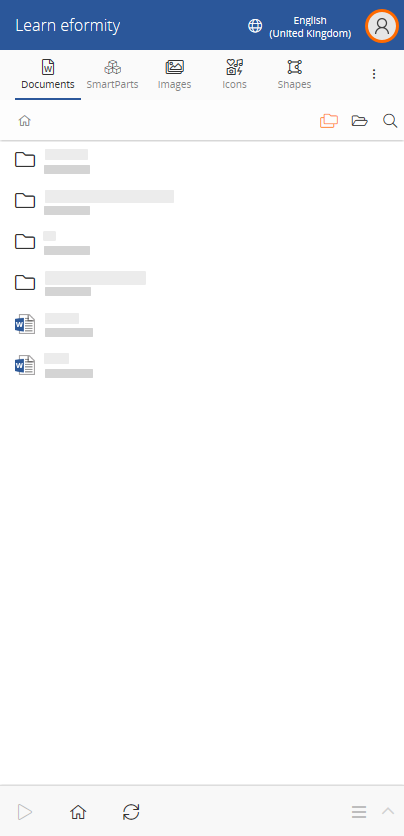
The Account menu will open. Toggle Edit mode to turn it on.

Step 3: Navigate to the Charts
Once you’ve enabled Edit mode, you can navigate to the Charts option. In most cases, this option is hidden due to screen size. You can click the three dots to open the menu.

When you click on the three dots, a new menu will appear. Select the option Charts. The image below shows which option this is.

Step 4: Insert a new Chart
Now that you have opened the Charts library in the side panel, it is time to insert a new chart into the document. Click on Insert in the Microsoft Word ribbon. Then click on Chart, choose your preferred chart, and click OK.

Step 5: Add the Chart to the library
After inserting a new chart into your document, it is time to add it to your chart library. To do this, first select the chart by clicking on it once. Now that the chart has been selected, you can add it to your library by pressing the plus icon.

After clicking the plus icon, a new section will appear allowing you to set a name, display name, and description for the chart.

| Field name | Description |
|---|---|
| Name (required) | Give the chart a name. |
| Display name | Provide a more descriptive name for end users. |
| Description | Set an additional description for how and when to use the chart |
Editing a Chart
Once you’ve added a chart to your library, you may want to update some of the information you initially provided. Editing a chart is simple. First, select the chart by clicking on it in the side panel. Once selected, a checkbox will appear. Then, click the Options menu.

Choose Edit from the Options menu. This opens the same side panel as when adding a chart. However, this time the fields are pre-filled with the existing data. Simply update the values and click the Save button to save your changes.

Deleting a Chart
In addition to editing, you can also delete a chart. This process is very similar to editing. However, instead of selecting Edit from the Options menu, choose Delete.


Please note: There is no trash or recycle bin. Once a Chart is deleted, it is permanently removed and cannot be recovered.